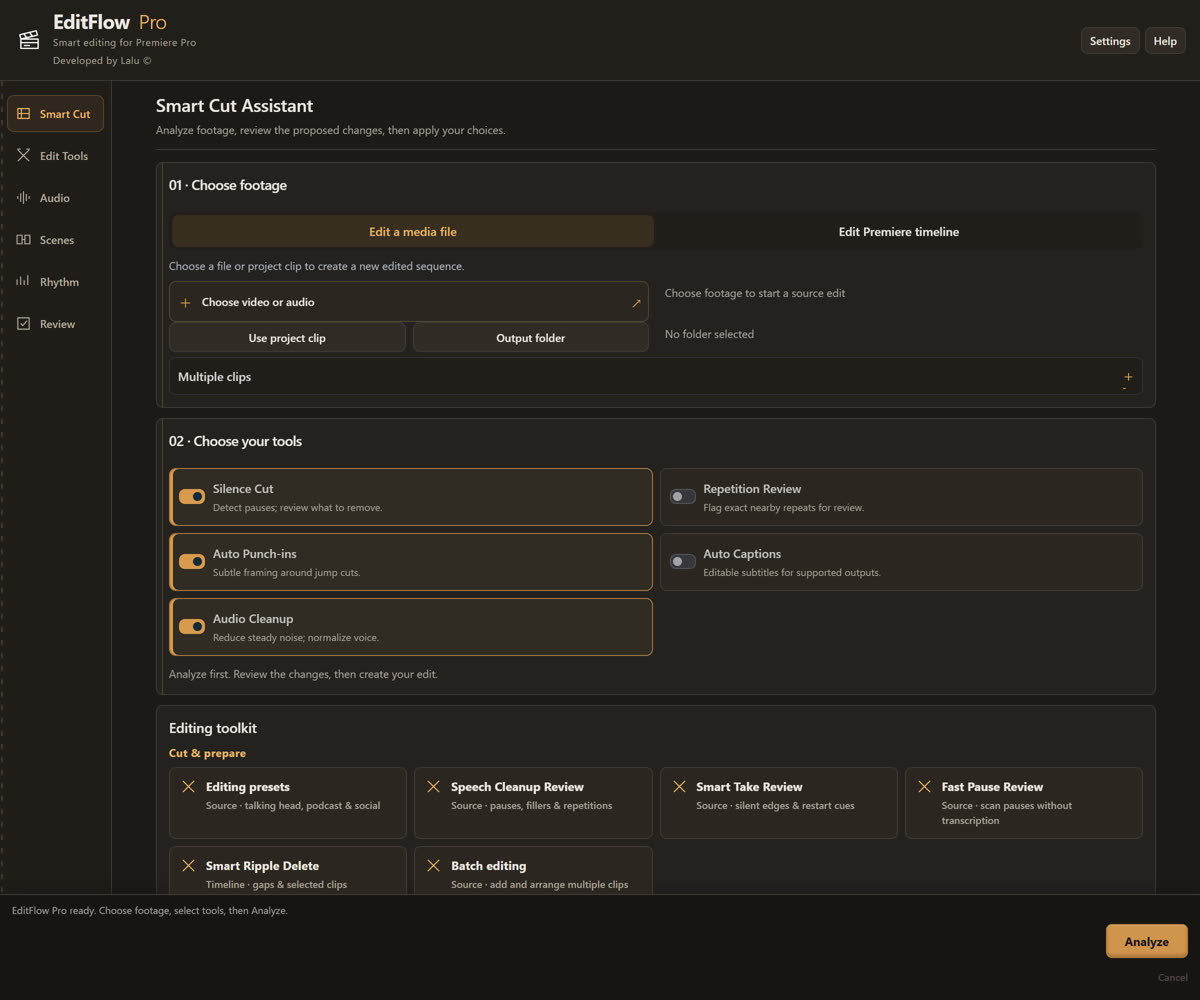
EditFlow Pro helps video editors create a rough cut faster inside Premiere Pro — remove pauses, review filler words, close gaps, reframe for social, and more, without leaving your timeline.
One-time payment · Lifetime license · No subscription
editflow-pro.panelWorks with Adobe Premiere Pro
▶
SEE IT IN ACTION
EditFlow Pro In Action
AI Silence Cut
Automatically detect and remove unwanted pauses and silent sections from your footage.
Jump Cut Pro
Automatically identify natural cut points for talking-head and interview footage.
Filler Word Detection
Detect common filler words and review or remove them before they reach your final cut.
Auto Captions
Generate editable captions for supported workflows, ready to style or export.
Scene Detection
Identify scene and shot changes automatically to help organize your footage.
Stop Spending Hours on Repetitive Cuts.
01
Manual Silence Removal
Find and remove pauses manually, one at a time, across every clip.
02
Repetitive Jump Cuts
Cut every pause and mistake one by one, then ripple-close the gap each time.
03
Messy Timelines
Cleaning interviews and talking-head footage takes far longer than the creative edit itself.
EditFlow Pro automates the repetitive work so you can focus on the creative edit.
FEATURES
Everything You Need to Clean a Timeline
A complete toolkit for the repetitive parts of editing — built to sit inside your existing Premiere Pro workflow. Most useful for talking-head videos, interviews, courses, podcasts, and YouTube content.
AI Silence Cut
Automatically detect and remove unwanted pauses and silent sections from your footage.
Jump Cut Pro
Automatically identify natural cut points for talking-head and interview footage.
Smart Ripple Delete
Remove unwanted sections while intelligently closing the resulting timeline gaps.
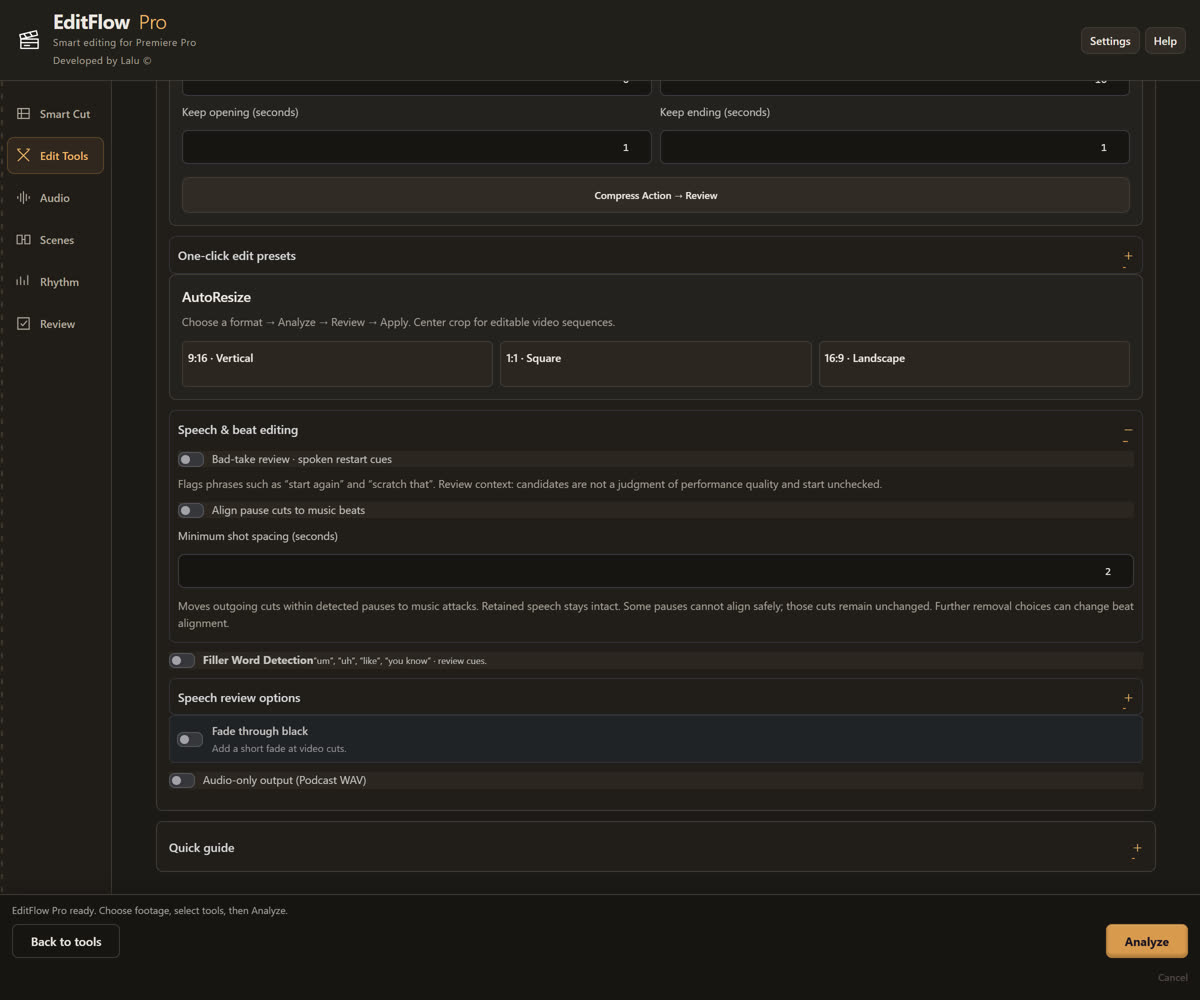
Filler Word Detection
Review repeated dialogue and standalone filler words before removing them from your cut.
"um""uh""like""you know"
Auto Captions
Generate editable captions for supported workflows, ready to style or export.
Scene Detection
Identify scene and shot changes automatically to help organize your footage.
Bad Take Detection
Flags phrases like "start again" or "scratch that" so you can review spoken restart cues — candidates aren't a judgment of performance and start unchecked.
Audio Cleanup
Checks your source audio for near-full-scale peaks, low levels, and possible dropouts, then surfaces the timeline positions for you to listen to and fix.
Batch Processing
Add 2–30 video clips, drag to reorder, and process them into one editable sequence. Requires matching frame rate, output size, and audio channels.
Auto Reframe
Resize edits to vertical, square, or landscape using center cropping — built for Shorts, Reels, and TikTok.
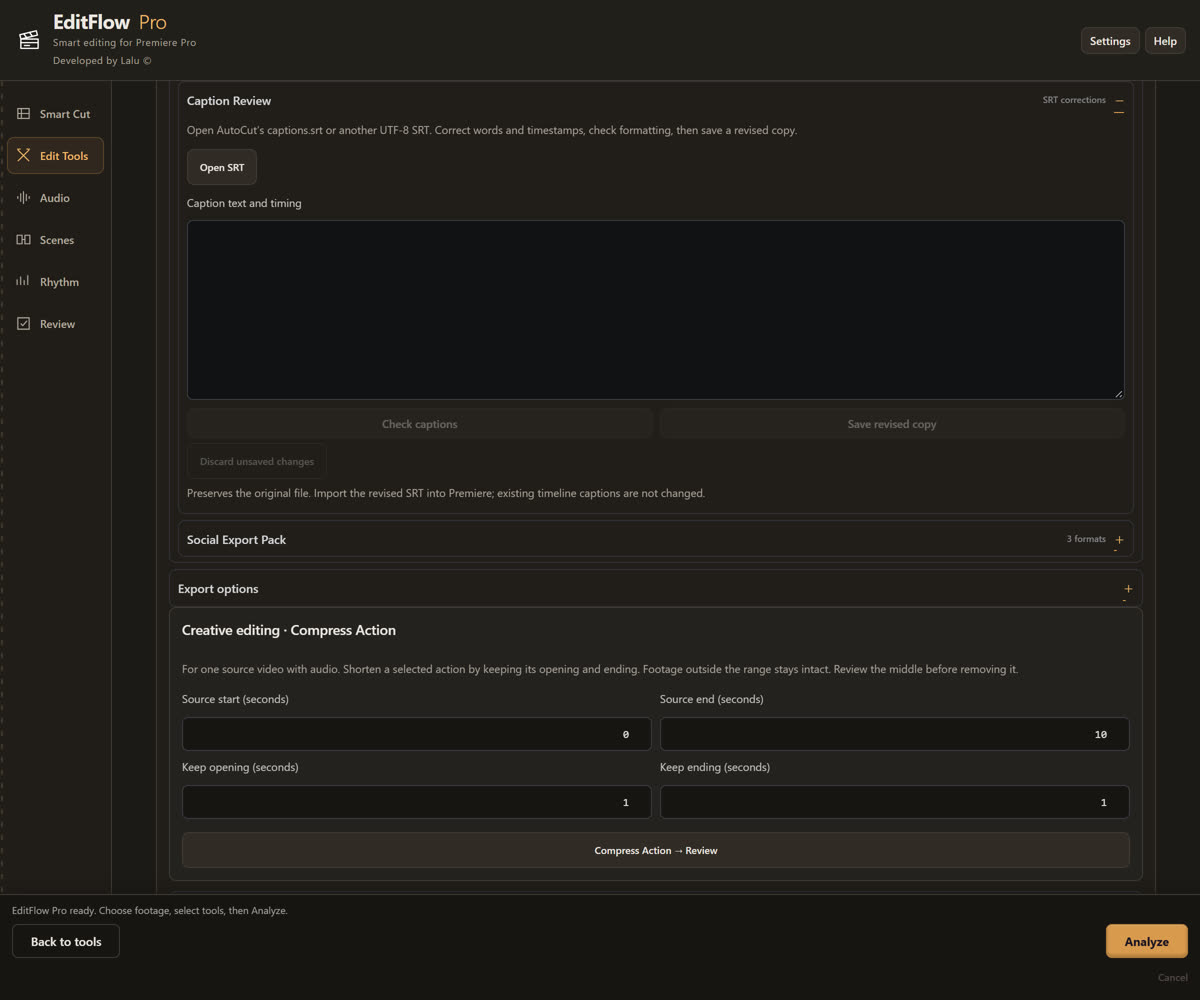
Compress Action
For one source video with audio. Shorten a selected action by keeping its opening and ending — footage outside the range stays intact, and you review the middle before it's removed.
One-Click Presets
Apply a ready-made preset for talking-head videos, interviews, courses, podcasts, or YouTube content — one click, no manual setup.
J / L Cuts
Preview a selected adjacent edit on your timeline before deciding how the audio and video should overlap.
Music & Ducking
Add a music track, sync cuts to detected beats, and automatically lower the music while there's speech.
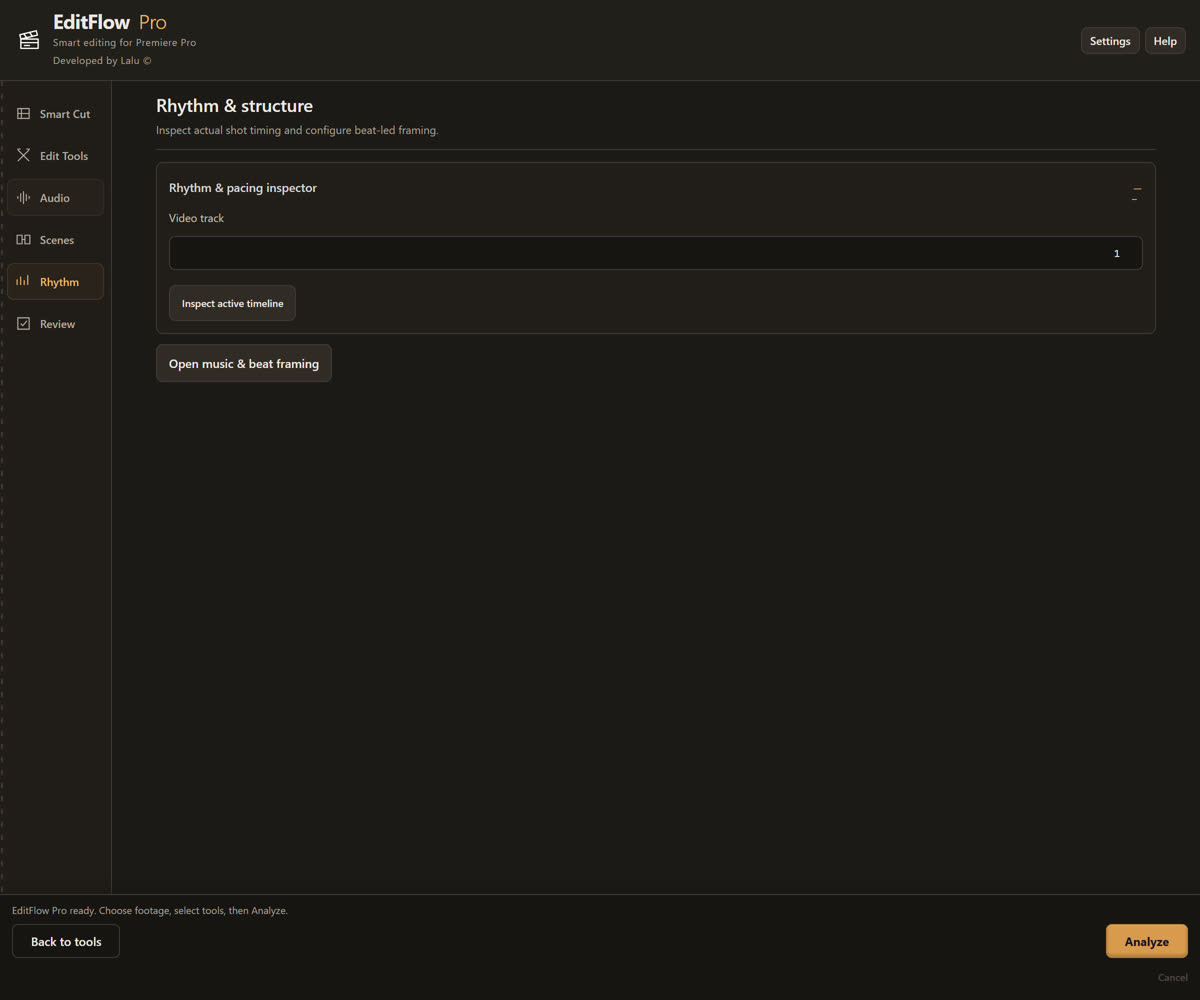
Rhythm & Pacing Inspector
Inspect actual shot timing on your timeline and configure beat-led framing before you commit to a cut.
Caption Only
Generate editable speech captions without cutting or otherwise changing your footage.
Caption Editor
Open an SRT file, correct words and timestamps, check formatting, and save a revised copy without touching your original.
Social Editing
Prepare cleaner, tighter timelines for YouTube Shorts, Instagram Reels, TikTok, and long-form YouTube — same silence removal and jump-cut tools, tuned for fast-paced formats. Exports as H.264 MP4 at 9:16, 1:1, or 16:9 from your source file, not the active sequence.
FROM RAW FOOTAGE TO CLEAN TIMELINE
See the Difference on Your Own Timeline
RAW FOOTAGE
EDITFLOW PRO
Drag the divider to compare — long pauses, filler words, and dead space removed automatically.
HOW IT WORKS
Five Steps From Raw to Ready
01
Choose Your Footage
Choose clips or work directly with your existing Premiere Pro timeline — no import or conversion needed.
02
Choose a Tool or Preset
Pick the tool or preset that matches what you're trying to do — silence removal, filler words, reframe, and more.
03
Analyze
EditFlow Pro analyzes the footage and identifies silence, filler words, and natural cut points.
04
Review
Review the detected edits in context before anything touches your timeline.
05
Apply
Apply the reviewed edits to your timeline with one click.
EDIT TOOLS
Choose your signature style.
Pick Natural Edit or Beat Edit, then apply a ready-made preset for talking-head videos, interviews, courses, podcasts, or YouTube content in one click.
ONE-CLICK EDITING
Speech Cleanup Review
PausesFillersRepetitionsRestart cues
Smart Take Review
Silent edgesRepeated dialogueRestart cues
Fast Pause Review
Audio-only scanPauses & edgesNo transcription
Source Jump Cut Edit
Tight pause cutsClean speechSteady frame
Smooth Zoom Edit
Keep natural pausesSubtle movementClean speech
Captioned Vertical Edit
9:16 center cropQuick cutsCaptions
SCENES & CAMERAS
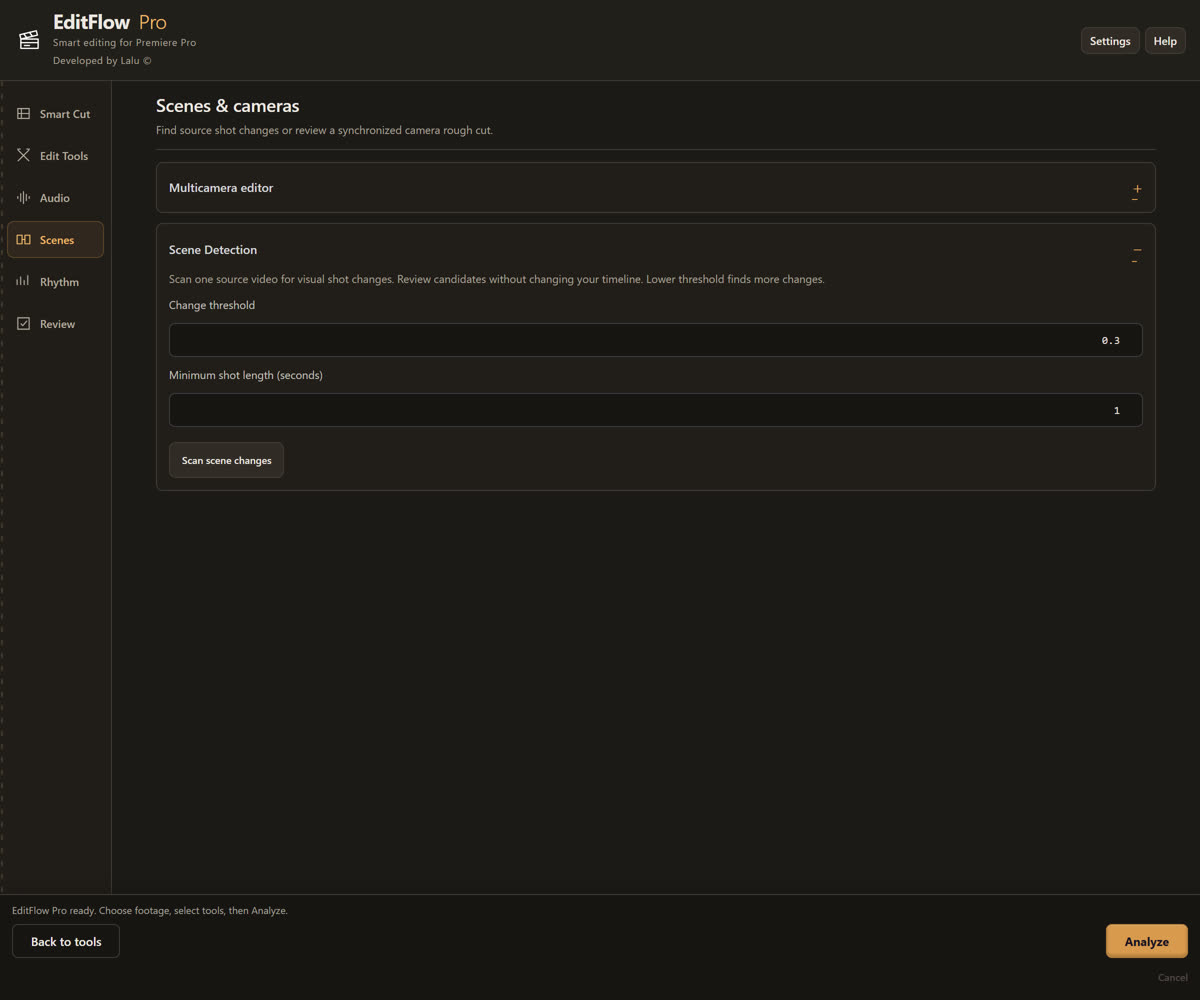
Scenes & cameras
Find source shot changes or review a synchronized camera rough cut.
Multicamera Editor
Sync multiple cameras into one reviewable rough-cut sequence, angle by angle — one continuous clip per track with separate mono mic source files, matching SDR cameras required.
Scene Detection
Scan a source video for visual shot changes and review candidates before touching your timeline. Adjustable change threshold and minimum shot length.
EditFlow Pro ready. Choose footage, select tools, then Analyze.
Your Time Should Go Into Editing. Not Cutting.
Manual Workflow
Listen
Find pause
Razor
Delete
Ripple
Repeat…
vs
EditFlow Pro
Choose footage
Pick a preset
Analyze
Review
Apply
DESIGNED FOR ADOBE PREMIERE PRO EDITORS
Built for Your Premiere Pro Workflow.
EditFlow Pro is designed to work inside the editor's existing workflow — not replace it.
Review every detected cut before it's applied to your timeline
Non-destructive workflow where the feature supports it
Professional, keyboard-friendly controls that stay out of your way
Panel-based UI that sits alongside your existing Premiere Pro layout
timeline.sequence
4 CUTS READY00:04:12 → 00:02:47
GET SET UP IN MINUTES
How to Install EditFlow Pro
01
Download your .zxp file
After purchase, your license email includes a link to the EditFlow Pro .zxp installer file.
02
Get the free ZXP Installer
Download the free ZXP Installer app (by Aescripts / ZXPInstaller.com) for Windows or macOS — no Creative Cloud sign-in required.
03
Drag and drop to install
Open ZXP Installer and drag your EditFlow Pro .zxp file into the window. It installs automatically as a CEP extension.
04
Restart Premiere Pro
Fully quit and reopen Premiere Pro so it picks up the newly installed extension.
05
Open the panel
In Premiere Pro, go to Window → Extensions → EditFlow Pro to launch the panel and start editing.
Why EditFlow Pro is Better
Automatic Silence Cuts
Finds pauses and dead air for you — no manual scrubbing required.
Every Cut Stays Reviewable
Nothing hits your timeline until you approve it — full editorial control.
Multicam & Scene Detection
Sync multiple angles and spot shot changes without scrubbing footage by hand.
Built for Premiere Pro
A native panel that fits your existing workflow instead of replacing it.
PRICING
One Payment. No Subscription.
Limited Launch Offer
EditFlow Pro
$39$59
One-time payment · Lifetime license
Lifetime license
Core editing tools
Silence removal
Jump Cut Pro
Filler-word detection
Ripple delete
Scene detection
Captions
Batch processing
Future updates according to license terms
Editor Pro Bundle
EditFlow Pro + SpeedRamp Pro — one-time payment, both plugins.
$158$59
FAQ
Frequently Asked Questions
Is EditFlow Pro a subscription?
No. The product is offered as a one-time purchase according to the selected license — there's no recurring subscription fee.
Does it work with Adobe Premiere Pro?
Yes, it's built as a panel for Adobe Premiere Pro. Exact supported version numbers are listed on the download page at time of purchase, since Adobe updates its version requirements over time.
Can I review cuts before applying them?
Yes — everywhere the feature supports preview and review, detected cuts are shown on your timeline before you commit to applying them.
Will it delete my original footage?
EditFlow Pro operates on your editing workflow and timeline. It is not designed to modify or delete your original source media unless a specific feature is explicitly built to do so, which will always be made clear.
Does it support jump cuts?
Yes — Jump Cut Pro automatically identifies natural cut points for talking-head and interview-style footage.
Can I use it for YouTube videos?
Yes — it's well suited to talking-head, interview, podcast, educational, and social content workflows, including long-form YouTube and Shorts/Reels/TikTok formats.
Do I get updates?
Your license includes future updates according to the terms stated at checkout. Please review the license agreement for the exact update policy before purchasing.
Is there a free trial?
Trial availability, if any, will be clearly stated on the download page along with its exact limitations at the time of your purchase.
Roadmap
Shipped
Automatic Silence & Scene Detection
Auto-detects pauses, dead air, and shot changes so cuts are ready to review, not built from scratch.
In Progress
Match on Action
Detects continuous motion across adjacent shots to suggest clean, natural cut points mid-action.
In Progress
Smash Cut
Flags abrupt, high-contrast scene changes so jarring transitions land exactly where they're intended.
Support
Stuck on something, or found a bug? Here's the fastest way to get help.
Email Support
Response within 24 hours on weekdays. Best for licensing, refunds, and install issues.